• Go To Website
  • Go To Website
home/Knowledge Base/PHP/Enable or Disable PHP’s GD Extension in cPanel
Popular Search:Reseller Hosting, VPS Hosting, Professional Mail

Enable or Disable PHP’s GD Extension in cPanel

1. Log into your cPanel account.

2. In the Software section, click the Select PHP Version.



3. Click on the Extensions menu.
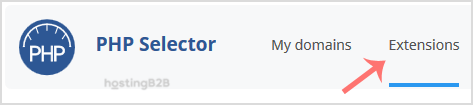
PHP Selector Extensions

Note: If the Extensions page shows an error related to the native PHP version, change it to a non-native version first.


4. Tick mark the GD Once enabled, it will display a success message.

Enable GD


The message will read that the module GD is saved.

Was this helpful?

1 Yes  No
Related Articles
  • Generating Wildcard CSR
  • Using NodeJS Apps
  • How To Setup Node.js App in cPanel
  • How to change cPanel password from your Client Area
  • How to Restore backup using JetBackup5
  • How To Clone A Website In cPanel
Leave A Comment

You must be logged in to post a comment.

PHP
  • Enable or Disable PHP’s GD Extension in cPanel
Popular Articles
  • How to install FREE SSL on cPanel
  • How to Install WordPress Online Using Softaculous App Installer
  • Creating addon domains
  • Listed Hosting Nameservers
  • How to register a domain, transfer a domain and buy Hosting Plan
Categories
  • General
  • Domain Reseller
  • Databases
  • WordPress
  • Email
  • Domain
    • Transfer
  • SSD Hosting
  • Nameservers
  • Cloud VPS
  • PHP
  • Migration
  • Resellers
    • WHM
    • WHMCS
  • Security
    • SSL
  • Professional Business Mail
  • Affliates
  • Dedicated Servers
  • Billings & Payments
  • DNS
  • Files & Access
  • Cloudflare
  • cPanel
    • Softaculous
  • Backup
  • Node.js

  FFMPEG Support

Email Client Setup.  

  • © 2020 - 2024. Listed Hosting. All Rights Reserved.

Popular Search:Reseller Hosting, VPS Hosting, Professional Mail